

Generate
Text to image, image to image, and SVG creation from prompts or references.
Edit
Upscale, reframe, inpaint, erase, and background tools on existing assets.
Auto Router & the model picker
Every image node has a model selector. Leave it on Auto to let the router choose the best model for your prompt and mode, or open the picker to choose one yourself — each option shows its speed and credit cost.Auto routes for you
Auto reads your prompt, mode, and constraints, then routes to the model that best balances quality, speed, and cost for that request.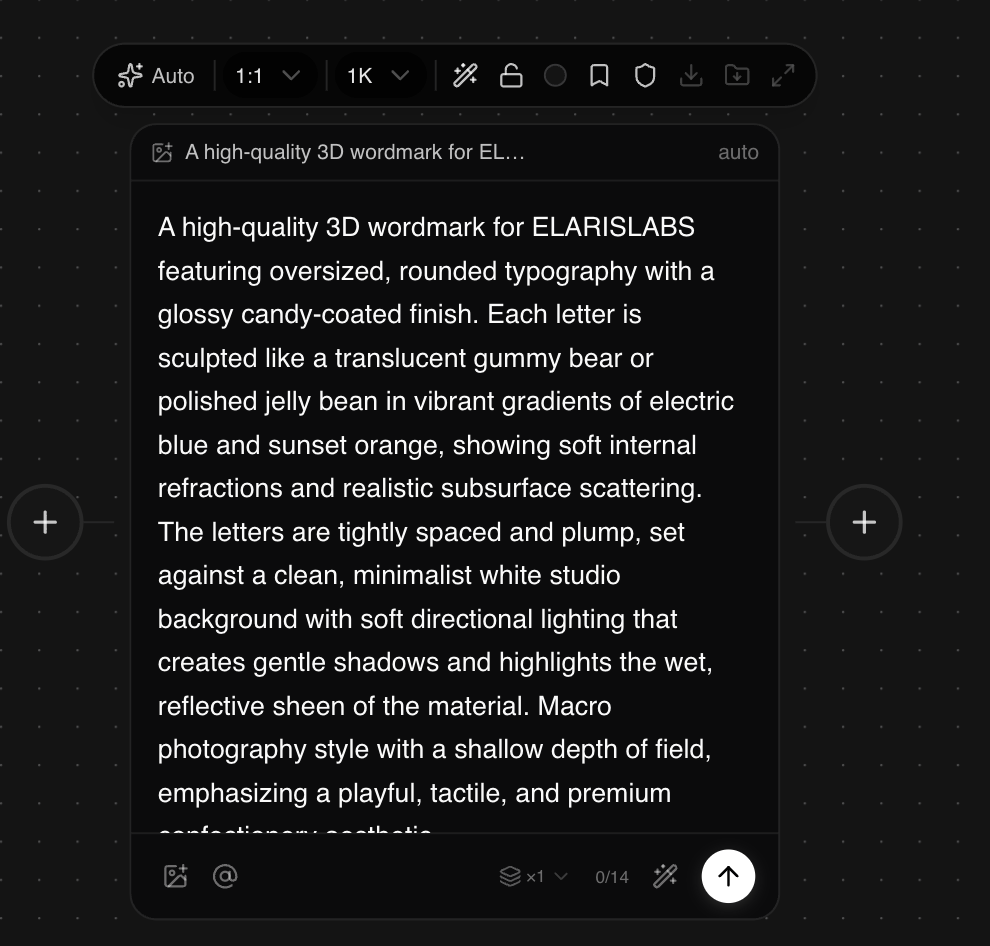
Or pick a model yourself
Open the picker to search compatible models, jump into featured options like Flux or GPT Image, or browse providers — Google, Black Forest Labs, ByteDance, OpenAI, Kling, Runway, and more.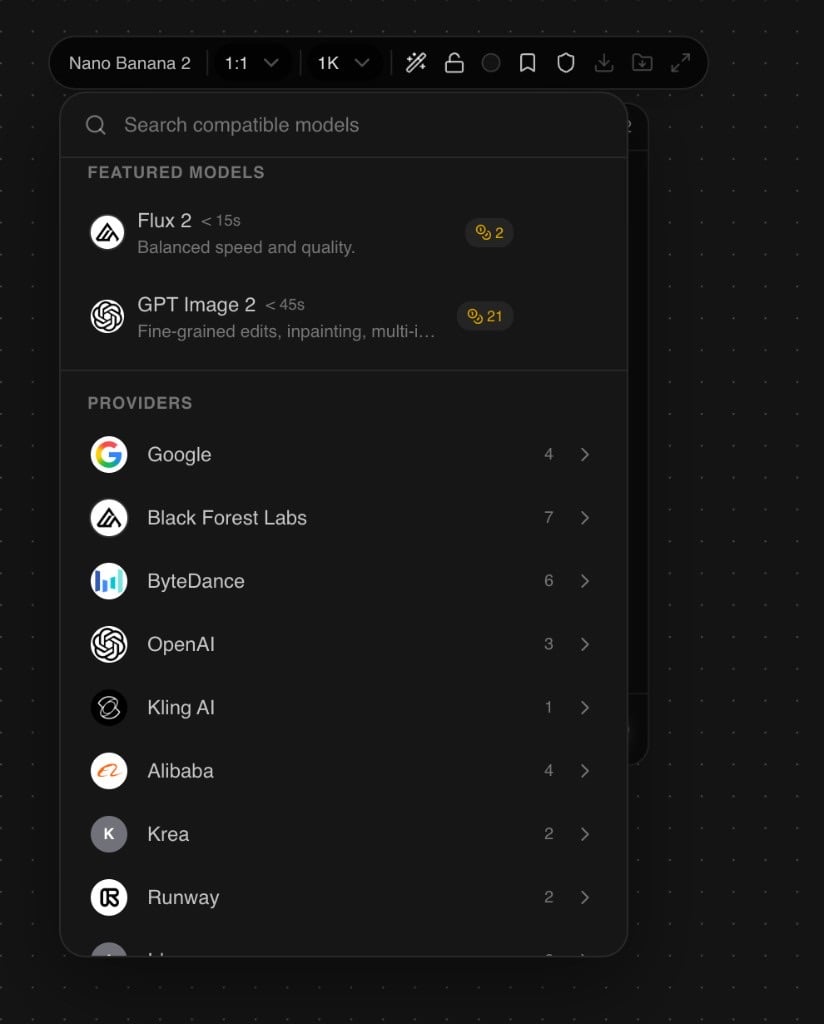
What generation modes are available?
Create new images from text or from existing references.Text to image
Generate a new image from a text prompt. Set aspect ratio, resolution, and optional style references. Works with Auto Router and all major models. Best for: hero shots, concept art, product visuals, ad backgrounds.Image to image
Condition generation on one or more reference images. Control how closely the output follows the reference via a strength / influence slider. Best for: style transfer, iterating on existing shots, brand-consistent generation.What editing modes are available?
Transform an existing image without starting from scratch.- Upscale
- Reframe
- Mask / inpaint
- Erase
- Replace background
- Remove background
Increase resolution and add fine detail. Useful as a final step before export or handoff.Input: any image node output or uploaded asset.
What SVG / vector modes are available?
Generate or vectorize artwork as clean SVG paths — useful for logos, icons, and print-ready assets.Text to SVG
Generate scalable vector artwork directly from a text description using Quiver Arrow.
Image to SVG
Vectorize any raster image into clean SVG paths for logos, icons, and print.
Which models are available?
Open the model picker on any image node for featured options and full provider lists. Common families include:
Full matrix: Image models.
What’s next?
Video nodes
Animate your images or generate from scratch
Layer editor
Composite multiple images into one layout
Brand pack
Resize your image for every platform