> ## Documentation Index
> Fetch the complete documentation index at: https://elarislabs.ai/docs/llms.txt
> Use this file to discover all available pages before exploring further.
# Image nodes
> Generate and edit images in Creative Studio — text-to-image, image-to-image, upscale, inpaint, background removal, reframe, and SVG vectorization with Auto Router and SOTA models.
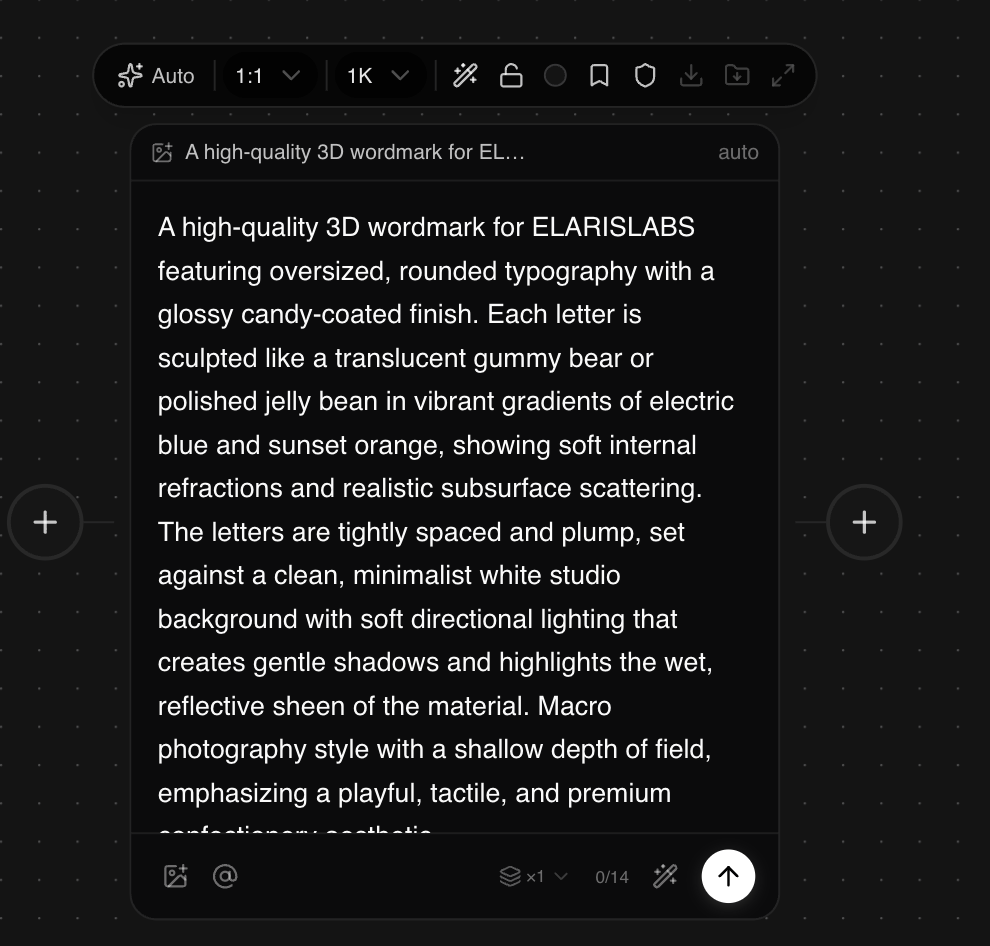
Image nodes are the foundation of Creative Studio's visual pipeline. Each node runs one image operation: pick a **mode**, choose a **model** (or leave it on **Auto**), set parameters, and generate. Chain nodes to build multi-step editing flows.
Text to image, image to image, and SVG creation from prompts or references.
Upscale, reframe, inpaint, erase, and background tools on existing assets.
## Auto Router & the model picker
Every image node has a model selector. Leave it on **Auto** to let the router choose the best model for your prompt and mode, or open the picker to choose one yourself — each option shows its speed and credit cost.
Auto reads your prompt, mode, and constraints, then routes to the model that best balances quality, speed, and cost for that request.
 Open the picker to search compatible models, jump into featured options like **Flux** or **GPT Image**, or browse providers — Google, Black Forest Labs, ByteDance, OpenAI, Kling, Runway, and more.
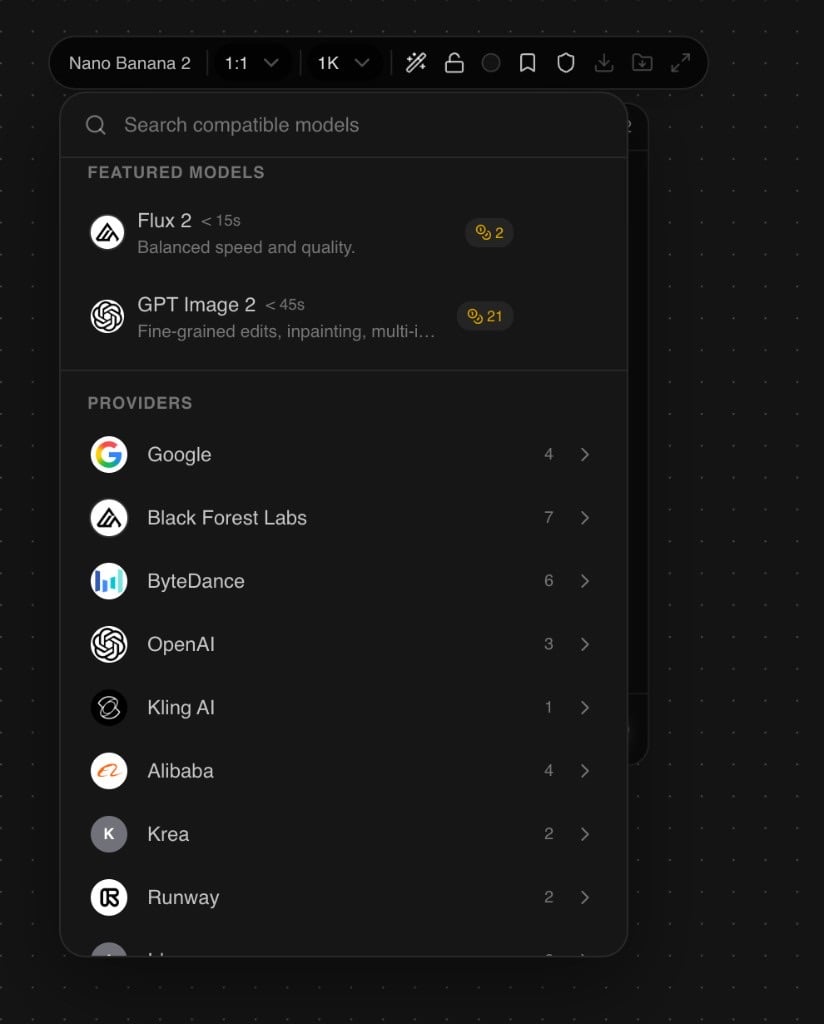 Creative Studio ships **state-of-the-art models across domains and price points** — photorealism, fine-grained edits, fast drafts, typography, and SVG. Full capability matrix: [Image models](/docs/models/image).
Resolution and quality change credit cost. Higher resolutions (2K / 4K) and premium models cost more per run — check the estimate in the node panel before generating.
## What generation modes are available?
Create new images from text or from existing references.
### Text to image
Generate a new image from a text prompt. Set aspect ratio, resolution, and optional style references. Works with Auto Router and all major models.
**Best for:** hero shots, concept art, product visuals, ad backgrounds.
### Image to image
Condition generation on one or more reference images. Control how closely the output follows the reference via a strength / influence slider.
**Best for:** style transfer, iterating on existing shots, brand-consistent generation.
## What editing modes are available?
Transform an existing image without starting from scratch.
Increase resolution and add fine detail. Useful as a final step before export or handoff.
**Input:** any image node output or uploaded asset.
Outpaint an image to a new aspect ratio — expand the canvas on any edge. Ideal for adapting a portrait crop to landscape without regenerating.
**Input:** any image.
Once reframed, hand the image to **[Brand Pack](/docs/studio/brand-pack)** to resize across every placement — Stories, feed, landscape DOOH — in one pass.
Draw a mask over a region and describe what should replace it. The rest of the image stays untouched.
**Input:** source image + mask drawing.
Remove an unwanted object or region and fill it with the surrounding background naturally.
**Input:** source image + selection.
Automatically segment the subject and swap the background with a new scene described by prompt.
**Input:** source image + prompt for the new background.
Cut out the subject and export with a transparent background (PNG alpha). Common before the layer editor or brand pack.
**Input:** any image.
## What SVG / vector modes are available?
Generate or vectorize artwork as clean SVG paths — useful for logos, icons, and print-ready assets.
Generate scalable vector artwork directly from a text description using Quiver Arrow.
Vectorize any raster image into clean SVG paths for logos, icons, and print.
## Which models are available?
Open the model picker on any image node for featured options and full provider lists. Common families include:
| Model / Family | Strengths |
| ------------------------ | ---------------------------------------------- |
| **Flux** | High-quality photorealism and prompt adherence |
| **Nano Banana (Gemini)** | Fast generation, strong at text-in-image |
| **Seedream** | Stylized and artistic outputs |
| **GPT Image** | Instruction-following, multi-subject scenes |
| **Kling** | Cinematic quality, strong composition |
| **Wan** | Versatile general-purpose generation |
| **Runway** | Creative / editorial style |
| **Ideogram utilities** | Typography and design |
| **Phota** | Portrait and product photography style |
| **Grok Imagine** | Expressive and imaginative outputs |
| **Hunyuan** | Asian aesthetic, high detail |
| **Quiver Arrow** | SVG vector generation |
Full matrix: [Image models](/docs/models/image).
## What's next?
Animate your images or generate from scratch
Composite multiple images into one layout
Resize your image for every platform
Creative Studio ships **state-of-the-art models across domains and price points** — photorealism, fine-grained edits, fast drafts, typography, and SVG. Full capability matrix: [Image models](/docs/models/image).
Resolution and quality change credit cost. Higher resolutions (2K / 4K) and premium models cost more per run — check the estimate in the node panel before generating.
## What generation modes are available?
Create new images from text or from existing references.
### Text to image
Generate a new image from a text prompt. Set aspect ratio, resolution, and optional style references. Works with Auto Router and all major models.
**Best for:** hero shots, concept art, product visuals, ad backgrounds.
### Image to image
Condition generation on one or more reference images. Control how closely the output follows the reference via a strength / influence slider.
**Best for:** style transfer, iterating on existing shots, brand-consistent generation.
## What editing modes are available?
Transform an existing image without starting from scratch.
Increase resolution and add fine detail. Useful as a final step before export or handoff.
**Input:** any image node output or uploaded asset.
Outpaint an image to a new aspect ratio — expand the canvas on any edge. Ideal for adapting a portrait crop to landscape without regenerating.
**Input:** any image.
Once reframed, hand the image to **[Brand Pack](/docs/studio/brand-pack)** to resize across every placement — Stories, feed, landscape DOOH — in one pass.
Draw a mask over a region and describe what should replace it. The rest of the image stays untouched.
**Input:** source image + mask drawing.
Remove an unwanted object or region and fill it with the surrounding background naturally.
**Input:** source image + selection.
Automatically segment the subject and swap the background with a new scene described by prompt.
**Input:** source image + prompt for the new background.
Cut out the subject and export with a transparent background (PNG alpha). Common before the layer editor or brand pack.
**Input:** any image.
## What SVG / vector modes are available?
Generate or vectorize artwork as clean SVG paths — useful for logos, icons, and print-ready assets.
Generate scalable vector artwork directly from a text description using Quiver Arrow.
Vectorize any raster image into clean SVG paths for logos, icons, and print.
## Which models are available?
Open the model picker on any image node for featured options and full provider lists. Common families include:
| Model / Family | Strengths |
| ------------------------ | ---------------------------------------------- |
| **Flux** | High-quality photorealism and prompt adherence |
| **Nano Banana (Gemini)** | Fast generation, strong at text-in-image |
| **Seedream** | Stylized and artistic outputs |
| **GPT Image** | Instruction-following, multi-subject scenes |
| **Kling** | Cinematic quality, strong composition |
| **Wan** | Versatile general-purpose generation |
| **Runway** | Creative / editorial style |
| **Ideogram utilities** | Typography and design |
| **Phota** | Portrait and product photography style |
| **Grok Imagine** | Expressive and imaginative outputs |
| **Hunyuan** | Asian aesthetic, high detail |
| **Quiver Arrow** | SVG vector generation |
Full matrix: [Image models](/docs/models/image).
## What's next?
Animate your images or generate from scratch
Composite multiple images into one layout
Resize your image for every platform